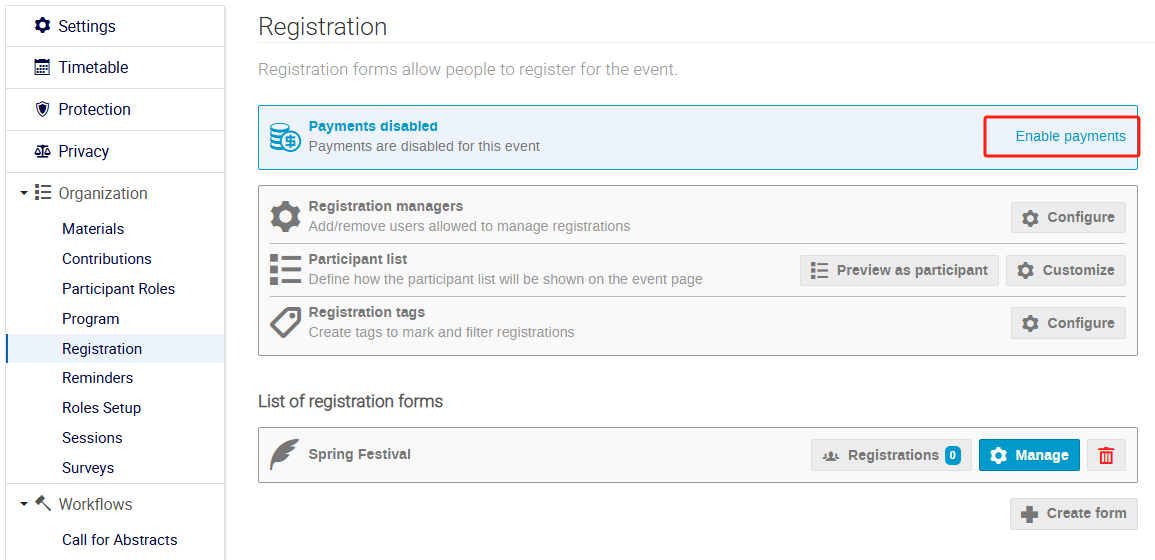
Enable payments
To set up payment for your conference, first go to the Registration section of the event management page and enable the payment function.
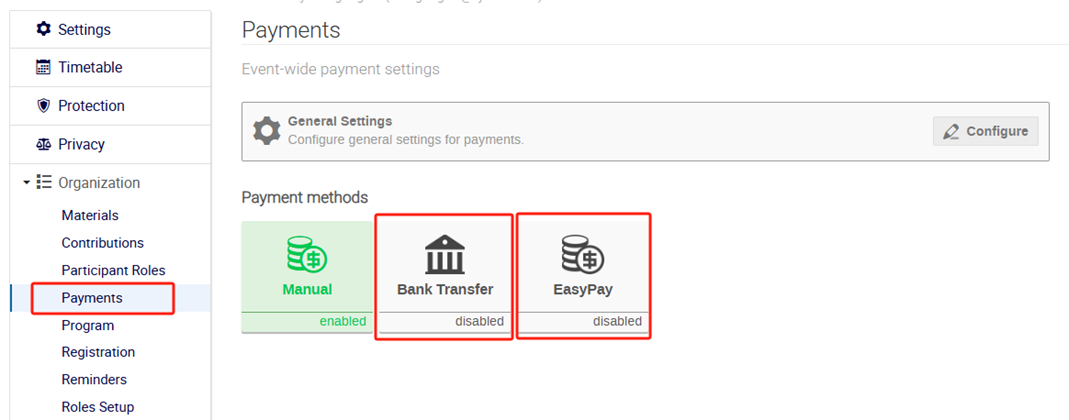
Set up payment options
Once payment has been enabled, a button called Payments will appear on the left banner. Click on this button to see several payment options. Click on one of the payments options available to enable it.
For domestic participants
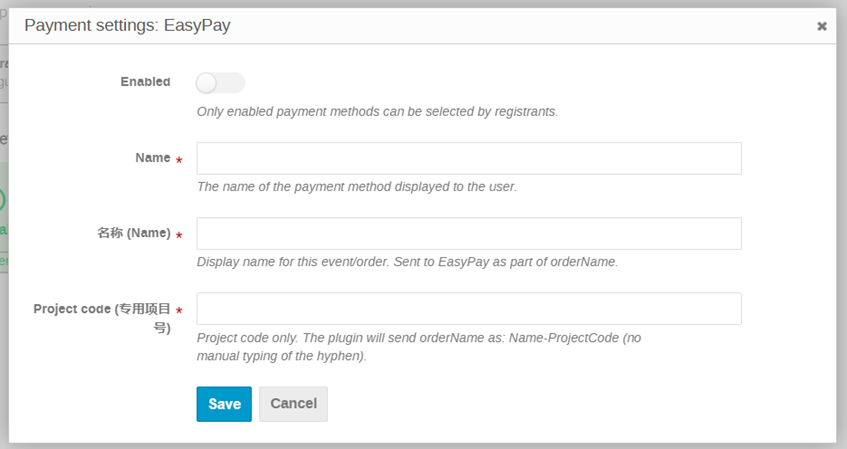
For participants registering and paying within China, EasyPay is recommended.
EasyPay supports Alipay, WeChat Pay and e-CNY (Digital RMB), and is generally the most convenient option for domestic payments. Before using EasyPay, organisers must apply to the Finance Office for a conference-specific project code. Once approved, this code should be entered in the Project code field in the EasyPay settings.
For international participants
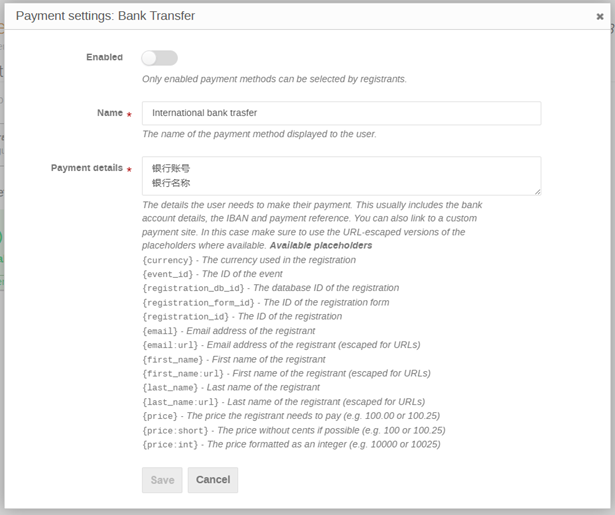
For overseas participants, bank transfer is recommended.
Select Enable, and insert the IBAN code of the bank account where the payment should be deposited. Any additional notes or payment-related remarks should be added in the Payment Details section, so that participants can clearly understand how to complete the payment.
Important considerations
Please note the following when configuring payment for your event:
- EasyPay does not support direct refunds. Any refund must be processed separately through the payment reimbursement process.
- Payments made through EasyPay using a foreign bank card cannot be refunded to the original payment method and cannot be converted into an international wire transfer refund. Therefore, where overseas refunds may be required, bank transfer is strongly recommended instead of EasyPay.
- For questions related to conference financial issues, please contact the Finance Office. For issues related to payment setup, please contact UMC.
Related guidance
For general guidance on configuring the registration process, please refer to: Configuring the Registration Process
Payment reconciliation with the Finance Office
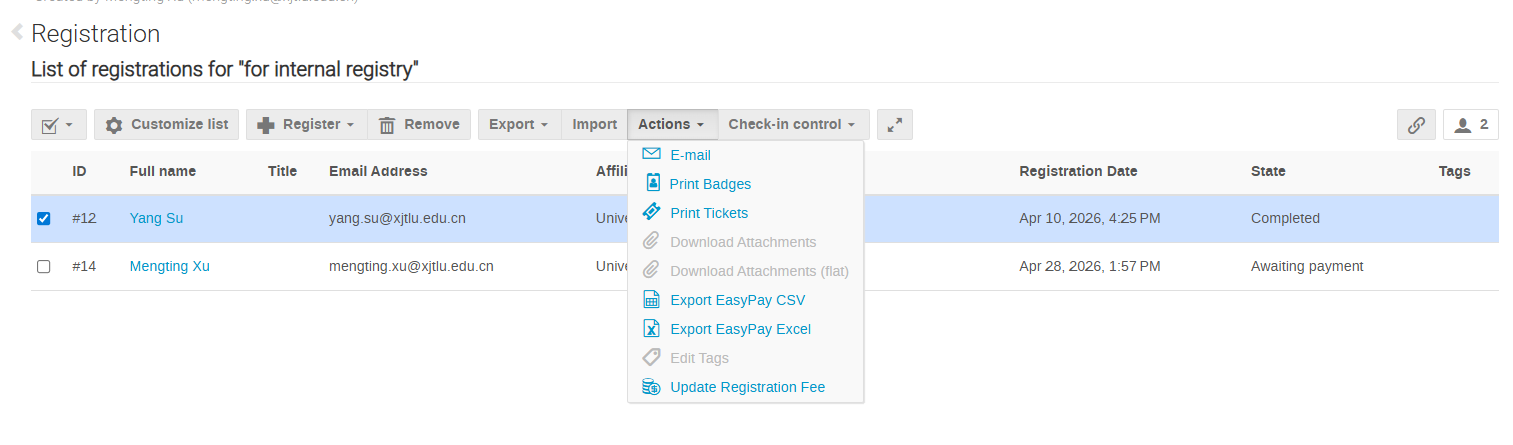
To reconcile payment records with the Finance Office, go to the Registration and open the relevant registration list. Select the registrants whose payment has been completed, then click Actions and choose Export EasyPay CSV or Export EasyPay Excel.